From Command Line to Bash Script
Bash (short for Bourne Again Shell) is the default shell on most Unix and macOS systems. Unix underpins much of the internet and server ecosystem, so Bash is central to running large-scale ML models, data pipelines, and backend infrastructure. Every cloud platform exposes a command-line interface, and Bash lets you automate those interactions.
Why Bash?
- Instead of copying and pasting individual commands, you can store them in a program and run everything with a single command.
- Bash grants easy access to powerful programming constructs.
Shell Commands Refresher
grep: filter input from other programs/commands using regular-expression pattern matching.cat: print a file’s contents line by line.tail/head: show the final or initial lines; use-nto specify the count.wc: count words or lines with-w/-l.sed: perform string replacements with regular expressions.
Bash Script Anatomy
Run a script with bash script.sh.
#!/usr/bash
echo "Hello world"
echo "Goodbye world"
#!/usr/bash
cat animals.txt | cut -d " " -f 2 | sort | uniq -c# sed examples
sed 's/1/2/g' <file> # replace 1 with 2 globally
sed 's/1/2/gi' <file> # replace 1 with 2, case-insensitiveStandard Streams & Arguments
- STDIN (standard input): data flowing into the program.
- STDOUT (standard output): data emitted by the program.
- STDERR (standard error): error messages from the program.

ARGV
- Refers to all arguments passed to the script.
- Access them with
$followed by the positional number. $@and$*return all arguments.$#reports how many arguments were provided.
#!/usr/bash
echo $1
echo $2
echo $@
echo "There are" $# "arguments"

bash args.sh one two three four five
Basic Variables in Bash
var1="Moon"
echo $var1
# Output: Moon
Always prefix the variable name with $ when reading it.
Effect of quoting:
# Single quotes
now_var='NOW'
now_var_singlequote='$now_var'
echo $now_var_singlequote
# Output: $now_var

# Double quotes
now_var_singlequote="$now_var"
echo $now_var_singlequote
# Output: NOWrightnow_doublequote="The date is $(date)."
echo $rightnow_doublequote
# Output: The date is Mon 2 Dec 2019 14:13:35 AEDT.rightnow_doublequote="The date is 'date'."
rightnow_parentheses="The date is $(date)."
echo $rightnow_doublequote
echo $rightnow_parentheses
# Both print the evaluated date thanks to command substitution.Numeric Variables in Bash
Bash does not natively handle arithmetic with decimal precision.
expr 1 + 4
# Output: 5
Integer math only. For floating-point calculations, use bc (basic calculator).

Use bc without launching it interactively by piping expressions:
echo "5 + 7.5" | bc
# Output: 12.5

echo "10 / 3" | bc
# Output: 3

echo "scale=3; 10 / 3" | bc
# Output: 3.333model1=87.65
model2=89.20
echo "The total score is $(echo "$model1 + $model2" | bc)"
echo "The average score is $(echo "($model1 + $model2) / 2" | bc)"Creating an Array in Bash
Declare arrays in one of two ways:
- Without values:
declare -a my_first_array - With values:
my_first_array=(1 2 3)(no spaces around the equals sign)
Unlike many languages, Bash separates array elements with spaces, not commas.
my_array=(1 3 5 2)
echo ${my_array[@]}
# Output: 1 3 5 2
Use @ to expand all elements.
echo ${#my_array[@]}
# Output: 4
# returns the array length.
my_array=(15 20 300 42)
echo ${my_array[2]}
# Output: 300
Arrays use zero-based indexing.
my_array=(15 20 300 42)
my_array[0]=999
echo ${my_array[0]}
# Output: 999
Slice elements with offset and count:
my_first_array=(15 20 300 42 23 2 4 33 54 67 66)
echo ${my_first_array[@]:3:2}
# Output: 42 23
Append elements:
my_array=(300 42 23 2 4 33 54 67 66)
my_array+=(10)
echo ${my_array[@]}
# Output: 300 42 23 2 4 33 54 67 66 10
Without parentheses Bash concatenates strings:
my_array=(300 42 23 2 4 33 54 67 66)
my_array+=10
echo ${my_array[@]}
# Output: 30010 42 23 2 4 33 54 67 66
Associative arrays (dictionaries):
declare -A city_details
city_details=([city_name]="New York" [population]=14000000)
echo ${city_details[city_name]}          # access by key
echo ${!city_details[@]}                 # list all keys
if Statements
if [ condition ]; then
    # code block
else
    # alternative block
fi
Remember to include spaces inside the brackets and use ; before then when writing the condition on a single line.
x="Queen"
if [ $x == "King" ]; then
    echo "$x is a King!"
else
    echo "$x is not a King!"
fi
Common comparison operators:
><=!=-eq(equal),-ne(not equal)-lt,-le(less than / less or equal)-gt,-ge(greater than / greater or equal)-e(file exists)-s(file exists and has non-zero size)-r(file exists and readable)-w(file exists and writable)&&,||for logical AND/OR
for Loops & while Statements
for x in 1 2 3
do
    echo $x
done
Use do / done to wrap the loop body (unlike Python).
for x in {1..5..2}
do
    echo $x
done
Curly braces create ranges: {start..end..step}.
for ((x=2; x<=4; x+=2))
do
    echo $x
done
Classic C-style loop syntax works too.
for book in books/*
do
    echo $book
done
for book in $(ls books/ | grep -i 'air')
do
echo $book
doneCommand substitution with $() supplies the loop values.
x=1
while [ $x -le 3 ];
do
    echo $x
    ((x+=1))
done
case Statements
case "STRINGVAR" in
    PATTERN1)
        COMMAND1;;
    PATTERN2)
        COMMAND2;;
    *)
        DEFAULT_COMMAND;;
esac
case $(cat "$1") in
*sydney*)
mv "$1" sydney/ ;;
*melbourne*|*brisbane*)
rm "$1" ;;
*canberra*)
mv "$1" "IMPORTANT_$1" ;;
*)
echo "No cities found" ;;
esacFunctions
Basic structure:
function_name() {
    # function code
    return    # optional
}temp_f=30
function convert_temp() {
temp_c=$(echo "scale=2; ($temp_f - 32) * 5 / 9" | bc)
echo $temp_c
}
convert_tempPassing arguments:
function print_filename {
    echo "The first file was $1"
    for file in "$@"
    do
        echo "This file has name $file"
    done
}
print_filename "LOTR.txt" "mod.txt" "A.py"
Global Variables
function print_filename {
    first_filename=$1
}
print_filename "LOTR.txt" "model.txt"
echo $first_filename
# Output: LOTR.txt
Use local to limit scope:
function print_filename {
    local first_filename=$1
}
print_filename "LOTR.txt" "model.txt"
echo $first_filename
# No output because the variable is local to the function.
Returning Values
function convert_temp {
    echo $(echo "scale=2; ($1 - 32) * 5 / 9" | bc)
}
converted=$(convert_temp 30)
echo "30F in Celsius is $converted C"
Scheduling Your Scripts
Cron (from the Greek chronos, meaning time) automates tasks on a schedule.
Use crontab -l to list current cron jobs.
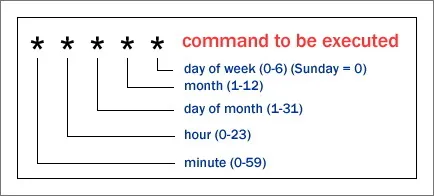
# Run every day at 2:30am
30 2 * * * bash script1.sh

# Run at minutes 15, 30, and 45 each hour
15,30,45 * * * * bash script2.sh

# Run every Sunday at 11:30pm
30 23 * * 0 bash script3.sh