AWS Lambda—one of AWS’s flagship serverless services—supports both zip-based deployments and container images. Container support launched during re:Invent 2020 and is now widely used. If you prefer Docker workflows, Lambda containers are a natural fit.
Below is a minimal example of building, testing, and deploying a containerized Lambda function.
Build an Image
This sample project uses two files:
$ tree
.
├── Dockerfile
└── main.py
main.py returns the incoming event and context, then responds with HTTP 200:
def handler(event, context):
    print("event: ", event)
    print("context: ", context)

    return {"statusCode": 200}
The Dockerfile references the Lambda base image for Python 3.8, copies the code to /var/task/, and sets the handler entrypoint:
FROM amazon/aws-lambda-python:3.8

COPY main.py /var/task/

CMD ["main.handler"]
AWS recommends using the official base images whenever possible. Lambda loads code from /var/task by default, though you can change it.
Build the image (I’m on Apple Silicon, so I specify the platform):
docker build --platform linux/arm64/v8 -t <image-name>:<tag> .Test Locally
One of the biggest perks of container images is how easy they are to test locally:
docker run -p 9000:8080 <image-name>:<tag>In another terminal, invoke the function:
curl -XPOST \
  "http://localhost:9000/2015-03-31/functions/function/invocations" \
  -d '{"talk": "Hello World"}'
The container logs show the invocation details:
START RequestId: a597fb7c-1e97-495b-87fb-e490e48a23de Version: $LATEST
event:  {'talk': 'Hello World'}
context:  <__main__.LambdaContext object at 0x400d38ba30>
END RequestId: a597fb7c-1e97-495b-87fb-e490e48a23de
REPORT RequestId: a597fb7c-1e97-495b-87fb-e490e48a23de	Init Duration: 3.02 ms	Duration: 675.96 ms	Billed Duration: 676 ms	Memory Size: 3008 MB	Max Memory Used: 3008 MB
If something goes wrong, fix the code, rebuild the image, and retest. AWS documents the workflow here.
Push the Image to ECR
Lambda loads container images from Amazon ECR. Make sure your AWS CLI credentials are configured first (docs).
Create a private ECR repository (I used the console with default settings and only set the repository name).
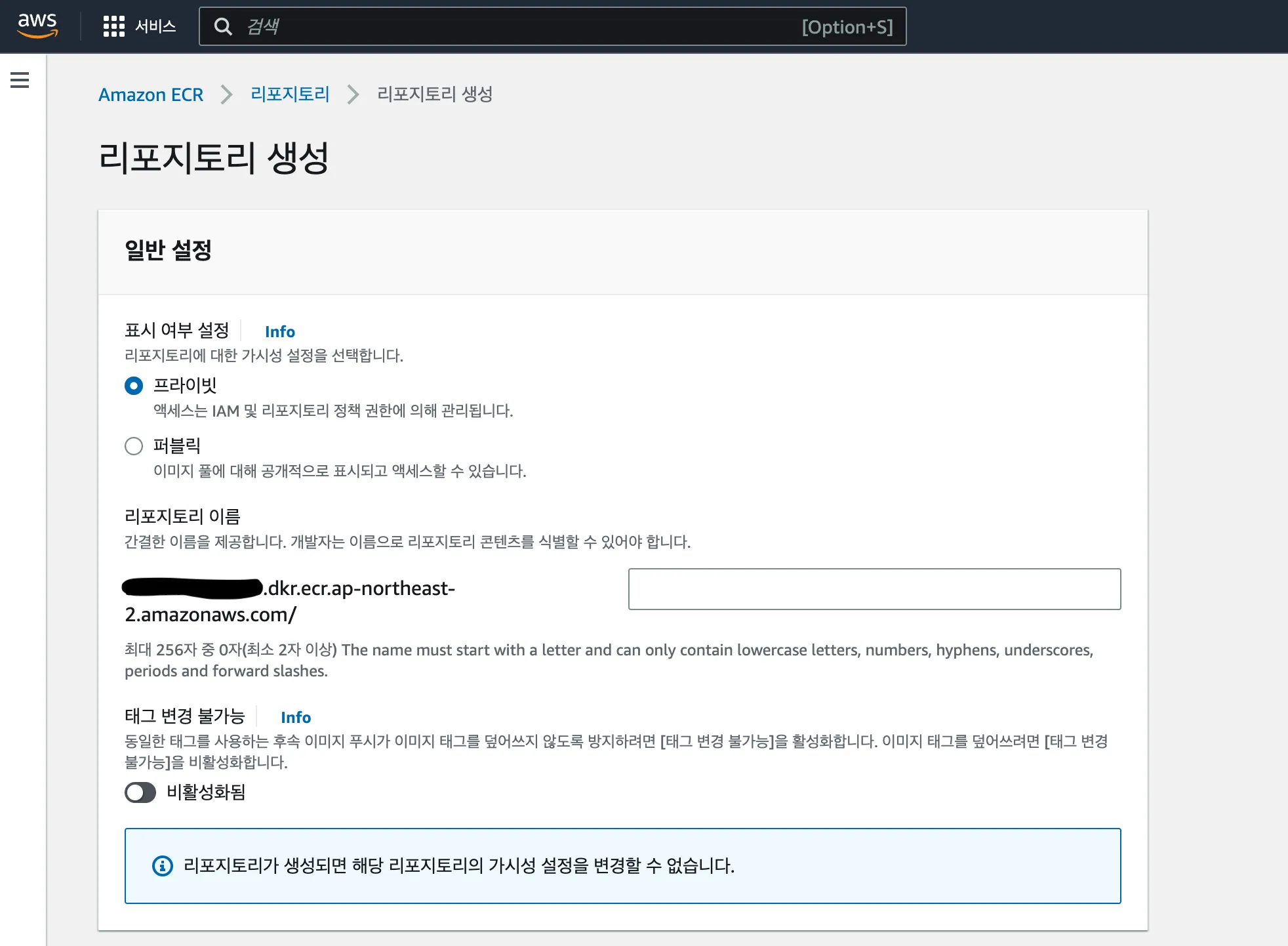
Then push the image:
docker tag <image-name>:<tag> \
  <account-id>.dkr.ecr.ap-northeast-2.amazonaws.com/<repository>

aws ecr get-login-password --region <region> \
  | docker login --username AWS --password-stdin \
    <account-id>.dkr.ecr.ap-northeast-2.amazonaws.com

docker push <account-id>.dkr.ecr.ap-northeast-2.amazonaws.com/<repository>
Create the Lambda Function
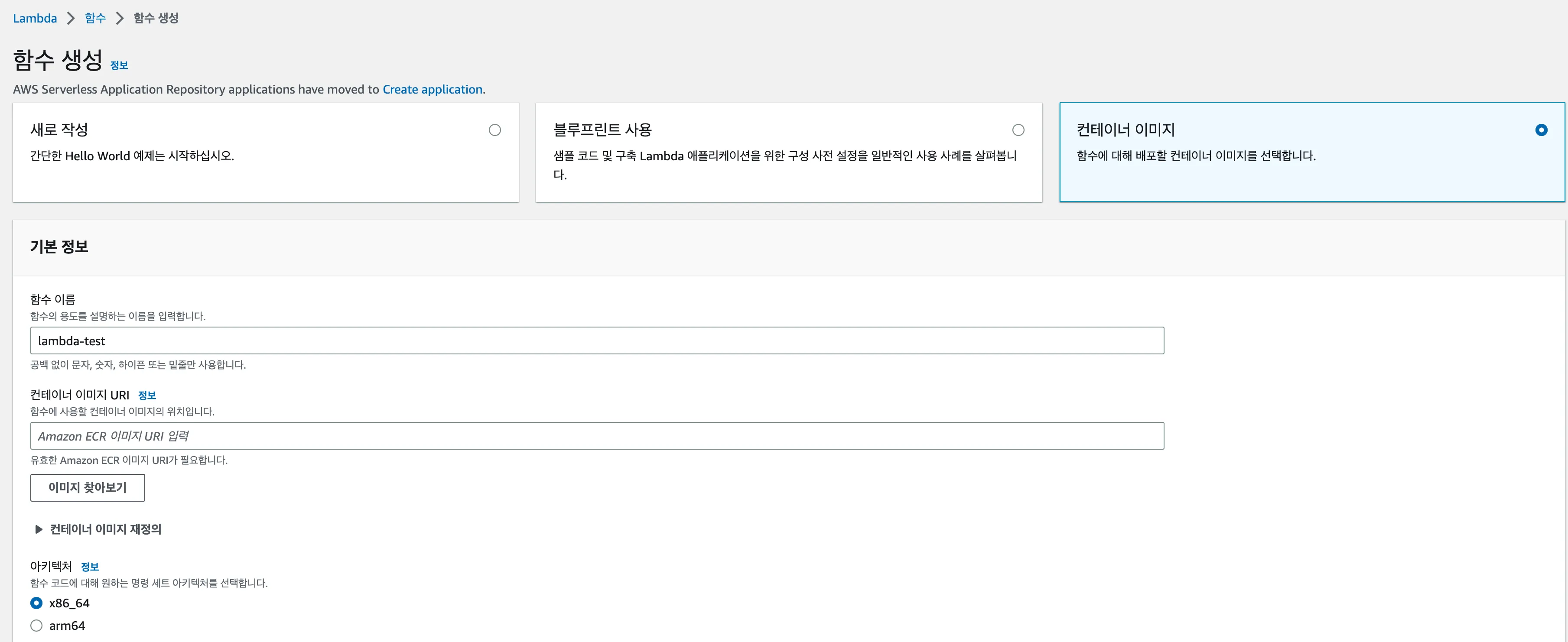
When creating a Lambda function, select Container image and choose the image you just pushed to ECR. If IAM permissions are missing, attach the relevant policies to the function’s execution role. You can override the image entrypoint or CMD directly in the console if needed.
From here the workflow is the same as any other Lambda function.
Wrap-Up
Why use Lambda containers when ECS or Fargate exist? AWS summarizes the trade-offs in this post:
- ECS: best for large-scale container orchestration.
- Fargate: serverless containers where AWS manages the infrastructure.
- Lambda containers: ideal when functions run intermittently in response to triggers but you want Docker packaging.
If your workload fits the Lambda execution model, container images give you the flexibility of Docker with the simplicity of serverless.